- Swift 48.7%
- Kotlin 42.6%
- Python 5.2%
- Shell 2.6%
- HTML 0.4%
- Other 0.5%
|
|
||
|---|---|---|
| assets | ||
| .gitattributes | ||
| .gitignore | ||
| build-windows.bat | ||
| CMakeLists.txt | ||
| LICENSE | ||
| Makefile | ||
| maturita.c | ||
| README.md | ||
| run-windows.bat | ||

maturita.c
An educational GTK 4 app written in C. / Vzdělávací GTK 4 aplikace napsaná v C.
English
Description
maturita.c is an educational program for high-school and gymnasium students
preparing for their maturita exam. The UI is available in Czech and English and
is built as a single C file (maturita.c) that renders a modern, CSS-styled
GTK 4 interface.
Screenshots
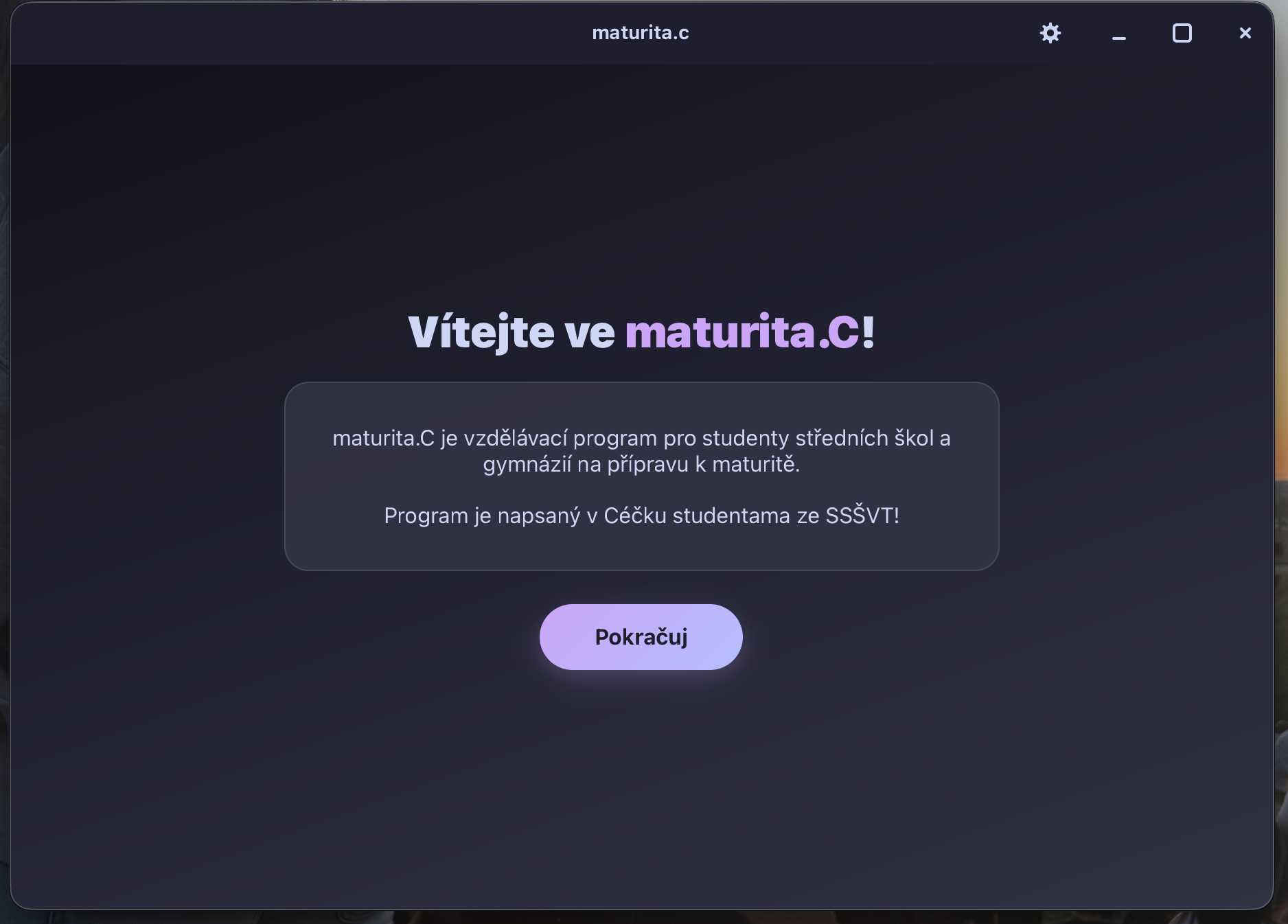
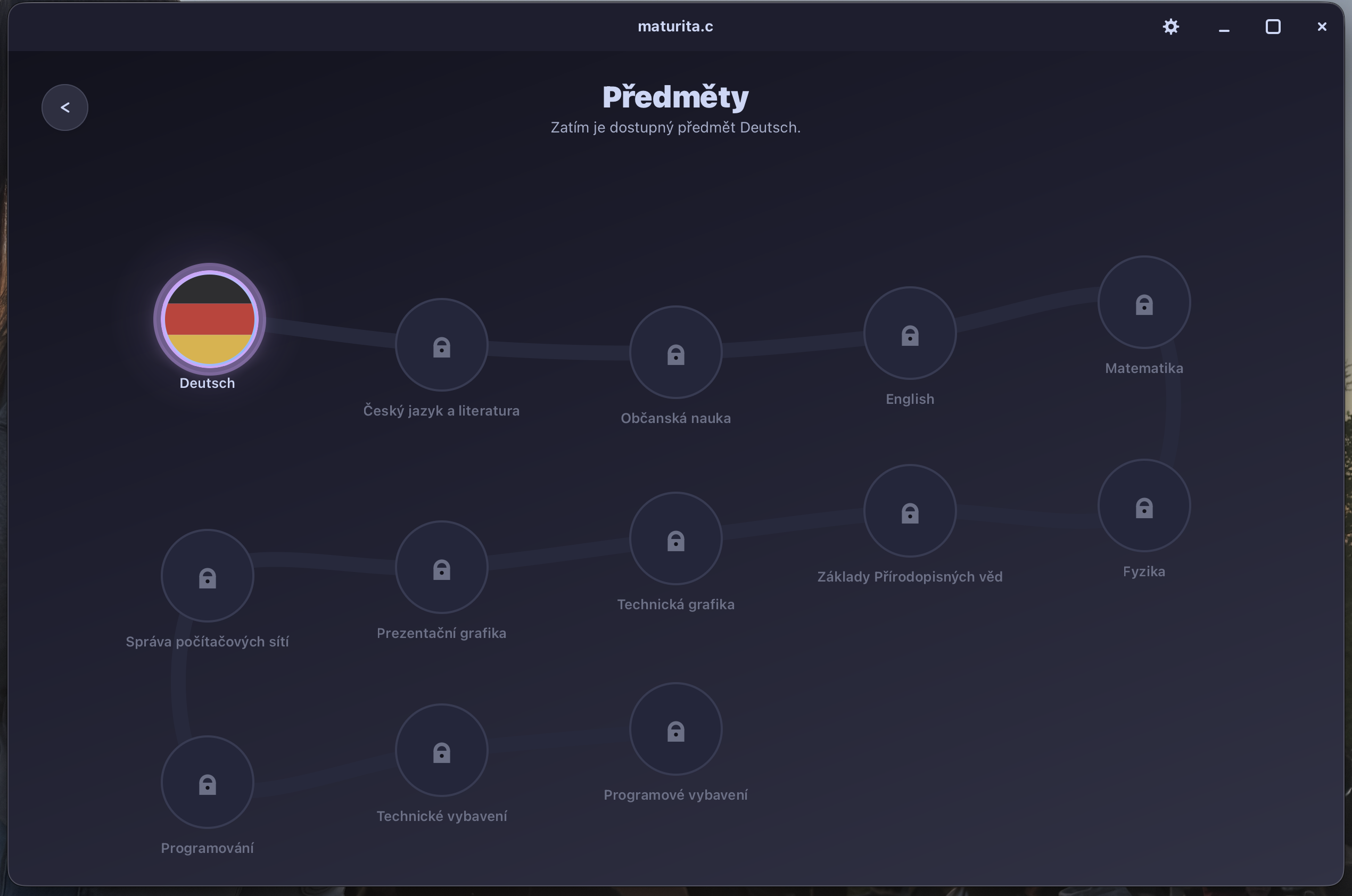
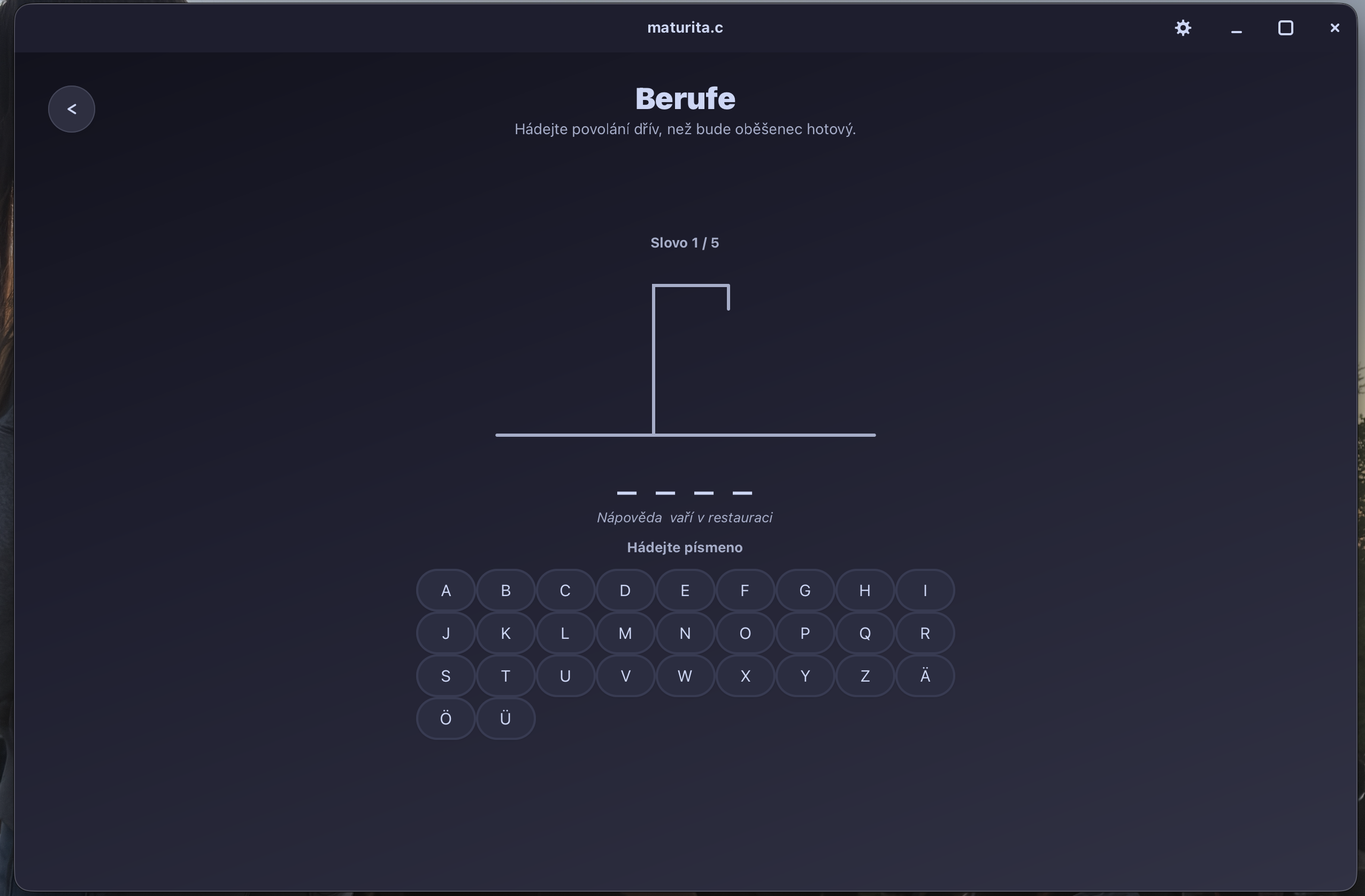
| Welcome screen | Subjects ("Předměty") | German learning roadmap |
|---|---|---|
 |
 |
 |
Features
- Welcome screen – branded greeting with a description of the program and a continue button to get started
- Subjects ("Předměty") – adaptive serpentine subject map with 13 subjects
- Deutsch is open (round bubble with the German flag) and opens the German learning path
- Správa počítačových sítí / Computer Network Administration is open too (shown with a Wi-Fi icon) and leads to a 30-unit computer-networks path whose first unit, Výpočet IP adres / IP Address Calculation, is playable; the rest are locked placeholders
- the remaining subjects are dimmed/locked placeholders until their content is added
- layout folds into multiple rows when the window is narrow
- Learning roadmap – adaptive serpentine learning path with 10 units
- each unit numbered and labeled with its topic (e.g. "Neue Freunde")
- units 1–3 are open; completed units shown in green with a checkmark
- remaining units dimmed with a lock icon
- finish node at the end of the path
- layout folds into multiple rows when the window is narrow
- Back navigation – themed circular back button (top-left) returns to the previous screen
- Unit 1 exercises – "Neue Freunde" opens an interactive bubble map with 13 exercises (dialogs, sentence building, multiple choice, free answers, numbers, verb conjugation, greeting sorting and more), each with German prompts and an instant-check button
- Unit 2 exercises – "Aus aller Welt" is playable from the start (no need
to finish unit 1 first) and offers a bubble map with 19 exercises: verb
conjugation, prepositions
aus/in, question words, nationalities and countries, spelling/look-and-find tasks, a matching exercise, a number/word game, free-answer "Steckbrief" tasks and a Hangman game with 5 professions - Unit 3 exercises – "Bei uns zu Hause" covers family vocabulary, possessives, accusative and related grammar across 15 exercises (drop-down sentence fill-ins, word building, "Was siehst du?", sentence ordering and missing-letter sentences)
- Hints & model answers – in exercises where you write or complete a German sentence the Czech meaning is shown right away as a hint, and clicking the check button also reveals the correct German sentence so you can compare
- Computer networks ("Výpočet IP adres") – the first networks unit contains a 4-slide walkthrough of IP subnetting (masks, host ranges, VLSM) followed by a practice sheet with four subnetting tasks; each task has a "show solution" button with a worked answer key
- Progress tracking – completed exercises are marked green; progress is
saved per unit to
progress/unit1.conf,progress/unit2.confandprogress/unit3.confand restored on startup - Statistics – chart icon in the header opens a per-subject progress overview: summary totals (exercises done, percent, finished units) at the top, then every subject with its own progress bar (subjects without content yet are shown as locked), and a per-unit breakdown with progress bars for Deutsch; numbers update as soon as you finish an exercise
- Settings – gear icon in the top-right header opens a panel where you can
choose:
- mode: dark or light, as a segmented control
- theme: 10 palettes picked from a grid of color swatches
- language: Czech or English, applied instantly without a restart
- all three preferences are stored in
progress/settings.conf
- Keyboard quit shortcuts –
Super/Cmd+QorAlt+F4closes the app - Single-file C codebase, cross-platform (Linux, macOS and Windows)
Installation
Prerequisites
1. GTK 4 development libraries
macOS:
brew install gtk4
Linux (Debian / Ubuntu):
sudo apt install libgtk-4-dev
Linux (Fedora):
sudo dnf install gtk4-devel
Linux (Arch):
sudo pacman -S gtk4
Windows – there is no official GTK 4 installer. The recommended path is MSYS2 + MinGW UCRT64 (no Visual Studio). See Windows install guide (GTK4) below.
2. Build tools (compiler, Make, pkg-config)
macOS – install these explicitly; they are not preinstalled:
brew install gcc make pkg-config
# or Apple's Clang toolchain:
# xcode-select --install
Linux – on most distributions gcc is already available
(build-essential / base-devel):
# Debian / Ubuntu
sudo apt install build-essential pkg-config
# Fedora
sudo dnf groupinstall "Development Tools"
sudo dnf install pkgconf-pkg-config
# Arch
sudo pacman -S base-devel pkgconf
Windows – gcc, GTK 4 and pkg-config are installed in step 1 of the
Windows guide below. Visual Studio is not required.
Building the application
- Clone or download this repository
- Navigate to the project directory
- Build with the Makefile:
make
Or manually:
# Linux / macOS
gcc -o maturita maturita.c $(pkg-config --cflags --libs gtk4) -lm

# Windows (MSYS2 UCRT64)
gcc -o maturita.exe maturita.c $(pkg-config --cflags --libs gtk4) -lm -mwindows
Building with CMake (optional, Linux / macOS)
cmake -S . -B build
cmake --build build
CMake finds GTK 4 through pkg-config. On Windows prefer the MSYS2 flow below.
Running the application
make run
or
# Linux / macOS
./maturita

# Windows (from the same MSYS2 UCRT64 shell used to build)
./maturita.exe
Windows install guide (GTK4)
Follow these steps to compile and run on Windows. Visual Studio is not required – MSYS2 and MinGW UCRT64 are enough.
-
Install MSYS2 and GTK4
Open Command Prompt (CMD) or PowerShell as Administrator and run:
winget install --id MSYS2.MSYS2 -e --source winget
C:\msys64\ucrt64.exe pacman -S --noconfirm mingw-w64-ucrt-x86_64-gcc mingw-w64-ucrt-x86_64-gtk4 mingw-w64-ucrt-x86_64-pkg-config
Wait until both commands finish. If
wingetsays MSYS2 is already installed, continue with the second command. (The second command opens an MSYS2 window, downloads packages, then exits – that is expected.) -
Get the project
Clone or download this repository and note the path, e.g.
C:\Users\Josef\maturita.c. -
Open the MSYS2 UCRT64 terminal
In the Start menu search for MSYS2 UCRT64 and open it. Do not use regular CMD or PowerShell –
gccandpkg-configwork in this shell. -
Enter the project folder and compile
In MSYS2, paths look like
/c/...instead ofC:\.... Adjust the path and run:cd /c/Users/Josef/maturita.c gcc -o maturita.exe maturita.c $(pkg-config --cflags --libs gtk4) -lm -mwindowsPath conversion examples:
C:\Users\Josef\maturita.c→/c/Users/Josef/maturita.cC:\Users\Josef\Desktop\maturita.c→/c/Users/Josef/Desktop/maturita.c
If compilation succeeds,
maturita.exeappears in the project folder. -
Run the app
From the same UCRT64 terminal:
./maturita.exe -
(Optional) Double-click from File Explorer
Running
maturita.exeoutside the MSYS2 terminal usually fails with missing DLLs. From the UCRT64 terminal (after installingmake) you can bundle everything intodist/:pacman -S --noconfirm make make bundleThen double-click
dist/maturita.exe.
Usage
When launched, the application shows the welcome screen. From there:
- Click "Pokračuj" / "Continue" to open the Předměty / Subjects map.
- Click the Deutsch bubble (German flag) to open the German learning roadmap, or the IP bubble ("Správa počítačových sítí") for the computer-networks path. Other subjects are still locked.
- Browse the units along the path; the roadmap reflows into rows and scrolls if the window is too narrow.
- Click the "Neue Freunde" node to open unit 1, "Aus aller Welt" for unit 2 or "Bei uns zu Hause" for unit 3, then pick any bubble to start an exercise. Units 2 and 3 are available even if the earlier units are not finished yet.
- On the networks path, open "Výpočet IP adres" (the first unit) to walk through four slides on IP subnetting; the final slide leads to the practice sheet with four subnetting tasks and per-task "show solution" answers.
- Use the back button in the top-left corner to return to the previous screen.
- Open Statistiky / Statistics (chart icon, top-right) to see progress grouped per subject (overall totals plus, for Deutsch, a per-unit breakdown).
- Open Nastavení / Settings (gear icon, top-right) to switch dark/light mode, pick a color theme, or change the interface language.
Units 1–3 are currently implemented. Locked units do nothing – they are
placeholders until lessons are added. Completed exercises stay green and are
saved per unit to progress/unit1.conf / progress/unit2.conf /
progress/unit3.conf (created next to the app on first finish).
Keyboard shortcuts
| Shortcut | Action |
|---|---|
Super/Cmd + Q |
Quit application |
Alt + F4 |
Quit application |
Project structure
maturita.c              entire application (UI, navigation, themes, exercises)
Makefile                build & run targets (Linux, macOS, MSYS2); `make bundle` on Windows
CMakeLists.txt          optional CMake build (Linux / macOS)
build-windows.bat       legacy MSVC build (requires Visual Studio + gvsbuild GTK)
run-windows.bat         legacy launcher for the MSVC build with GTK DLLs on PATH
README.md               this file
LICENSE                 GPL-3.0 license
progress/               created at runtime
  unit1.conf            unit 1 exercise completion state
  unit2.conf            unit 2 exercise completion state
  unit3.conf            unit 3 exercise completion state
  settings.conf         theme, dark/light mode and language preference
Theming
The app ships with ten palettes – Catppuccin, Nord, Dracula, Rose Pine, Ocean,
Gruvbox, Solarized, Everforest, Monokai and One Dark – each available in dark
and light mode. Colors are defined as theme palettes in maturita.c and
applied through a generated CSS stylesheet (plus matching Cairo colors for the
roadmap rails and icons).
Change the look from the in-app settings panel, or edit the palette tables /
build_theme_css() in maturita.c and rebuild.
Languages
The interface can be switched between Czech and English from the settings
panel; the choice takes effect immediately and is remembered between runs.
Translations live in two tables in maturita.c: tr_ui holds interface
strings under short keys, while tr_content translates the Czech meanings
shown next to the German exercise items and uses the Czech text itself as the
key. Widgets are registered with i18n_bind() so apply_language() can
retranslate them in place.
German prompts, unit names and exercise titles are learning material and stay German in both languages.
To-Do plans
- Wire unit nodes to actual German vocabulary/grammar exercises
- Unit 1 ("Neue Freunde") – 13 interactive exercises with progress saving
- Unit 2 ("Aus aller Welt") – 19 interactive exercises (incl. Hangman)
- Unit 3 ("Bei uns zu Hause") – 15 interactive exercises
- Lesson progression and unlock system for the remaining units
- Add audio pronunciation features
- Add user settings panel (theme, dark/light mode, language)
- Implement spaced repetition system for vocabulary
- Add listening and reading comprehension exercises
- Add writing practice with feedback
- Expand progress tracking with statistics
- Move CSS styling to an external file
- Split the UI code into multiple files
- Add internationalization support (Czech and English)
- Add more interface languages
- Add unit testing framework
License
This project is licensed under the GPL-3.0 License – see the LICENSE file for details.
Acknowledgments
- Created as a learning exercise in C and GTK programming
- Inspired by language learning applications
- Built with GTK 4 for modern GUI development
Česky
Popis
maturita.c je vzdělávací program pro středoškoláky a gymnazisty připravující
se na maturitu. Rozhraní je v češtině a angličtině a celá aplikace je v jednom
C souboru (maturita.c) s moderním GTK 4 rozhraním stylovaným přes CSS.
Screenshoty
| Úvodní obrazovka | Předměty | Německá učební cesta |
|---|---|---|
|
|
|
Funkce
- Úvodní obrazovka – branding, popis programu a tlačítko pokračovat
- Předměty – přizpůsobivá „hadí“ mapa s 13 předměty
- Deutsch je otevřený (bublina s německou vlajkou) a vede na německou učební cestu
- Správa počítačových sítí je také otevřená (ikona Wi‑Fi) a vede na cestu s 30 jednotkami; první jednotka Výpočet IP adres je hratelná, zbytek je zatím zamčený
- ostatní předměty jsou ztmavené / zamčené placeholdery
- při úzkém okně se mapa zalomí do více řad
- Učební cesta – přizpůsobivá cesta s 10 jednotkami
- každá jednotka má číslo a název (např. „Neue Freunde“)
- jednotky 1–3 jsou otevřené; dokončené jsou zelené s fajfkou
- zbývající jsou ztmavené se zámkem
- na konci je cílová / finish uzel
- při úzkém okně se cesta zalomí do více řad
- Zpět – kulaté tlačítko vlevo nahoře vrátí na předchozí obrazovku
- Cvičení jednotky 1 – „Neue Freunde“: mapa s 13 cvičeními (dialogy, skládání vět, výběr z možností, volné odpovědi, čísla, časování sloves, řazení pozdravů…), německé zadání a okamžitá kontrola
- Cvičení jednotky 2 – „Aus aller Welt“ je hratelná hned (není nutné
dokončit jednotku 1): 19 cvičení – časování, předložky
aus/in, tázací slova, národnosti a země, pravopis / hledej a najdi, párování, hra s čísly, volné „Steckbrief“ odpovědi a Hangman s 5 povoláními - Cvičení jednotky 3 – „Bei uns zu Hause“: rodina, přivlastňovací zájmena, akuzativ a další gramatika v 15 cvičeních (doplňování vět, skládání slov, „Was siehst du?“, řazení vět, chybějící písmena)
- Nápovědy a vzorové odpovědi – u psaných / doplňovaných vět je hned český význam; po kontrole se ukáže i správná německá věta
- Počítačové sítě („Výpočet IP adres“) – 4 slidová vysvětlení IP subnettingu (masky, rozsahy hostitelů, VLSM) a pak 4 praktické úlohy s tlačítkem „ukázat řešení“
- Ukládání postupu – hotová cvičení zezelenají; stav se ukládá do
progress/unit1.conf,progress/unit2.confaprogress/unit3.confa při startu se načte zpět - Statistiky – ikona grafu v hlavičce ukáže postup po předmětech (součty, procenta, dokončené jednotky), progress bary u každého předmětu a rozpad po jednotkách u Deutsch
- Nastavení – ozubené kolečko vpravo nahoře:
- režim: tmavý / světlý
- téma: 10 barevných palet
- jazyk: čeština nebo angličtina, bez restartu
- vše se ukládá do
progress/settings.conf
- Klávesové zkratky pro ukončení –
Super/Cmd+QneboAlt+F4 - Jeden C soubor, multiplatformní (Linux, macOS i Windows)
Instalace
Požadavky
1. Vývojářské knihovny GTK 4
macOS:
brew install gtk4
Linux (Debian / Ubuntu):
sudo apt install libgtk-4-dev
Linux (Fedora):
sudo dnf install gtk4-devel
Linux (Arch):
sudo pacman -S gtk4
Windows – oficiální instalátor GTK 4 neexistuje. Doporučený postup je MSYS2 + MinGW UCRT64 (bez Visual Studia). Viz Instalační návod pro Windows (GTK4) níže.
2. Build nástroje (kompilátor, Make, pkg-config)
macOS – nainstalujte je ručně, nejsou předinstalované:
brew install gcc make pkg-config
# nebo Apple Clang:
# xcode-select --install
Linux – na většině distro je gcc už k dispozici
(build-essential / base-devel):
# Debian / Ubuntu
sudo apt install build-essential pkg-config
# Fedora
sudo dnf groupinstall "Development Tools"
sudo dnf install pkgconf-pkg-config
# Arch
sudo pacman -S base-devel pkgconf
Windows – gcc, GTK 4 i pkg-config se nainstalují v kroku 1 návodu níže.
Visual Studio není potřeba.
Sestavení aplikace
- Naklonujte nebo stáhněte tento repozitář
- Přejděte do složky projektu
- Sestavte pomocí Makefile:
make
Nebo ručně:
# Linux / macOS
gcc -o maturita maturita.c $(pkg-config --cflags --libs gtk4) -lm

# Windows (MSYS2 UCRT64)
gcc -o maturita.exe maturita.c $(pkg-config --cflags --libs gtk4) -lm -mwindows
Sestavení přes CMake (volitelné, Linux / macOS)
cmake -S . -B build
cmake --build build
CMake najde GTK 4 přes pkg-config. Na Windows použijte MSYS2 návod níže.
Spuštění aplikace
make run
nebo
# Linux / macOS
./maturita

# Windows (ze stejného MSYS2 UCRT64 terminálu, ve kterém jste kompilovali)
./maturita.exe
Instalační návod pro Windows (GTK4)
Následujte tyto kroky pro rychlé zkompilování a spuštění na Windows. Visual Studio není potřeba – stačí MSYS2 a MinGW UCRT64.
-
Nainstalujte MSYS2 a GTK4
Otevřete Příkazový řádek (CMD) nebo PowerShell jako Správce a spusťte:
winget install --id MSYS2.MSYS2 -e --source winget
C:\msys64\ucrt64.exe pacman -S --noconfirm mingw-w64-ucrt-x86_64-gcc mingw-w64-ucrt-x86_64-gtk4 mingw-w64-ucrt-x86_64-pkg-config
Počkejte, až se obě instalace dokončí. Pokud
wingethlásí, že MSYS2 už je nainstalované, klidně pokračujte druhým příkazem. (Druhý příkaz otevře okno MSYS2, stáhne balíčky a zase se ukončí – to je v pořádku.) -
Stáhněte projekt
Naklonujte nebo stáhněte tento repozitář a zapamatujte si cestu, např.
C:\Users\Josef\maturita.c. -
Otevřete terminál MSYS2 UCRT64
Ve Start menu vyhledejte MSYS2 UCRT64 a spusťte ho. Nepoužívejte běžný CMD ani PowerShell –
gccapkg-configfungují právě v tomto okně. -
Přejděte do složky projektu a zkompilujte
V MSYS2 se cesty píší jako
/c/...místoC:\.... Upravte cestu podle sebe a spusťte:cd /c/Users/Josef/maturita.c gcc -o maturita.exe maturita.c $(pkg-config --cflags --libs gtk4) -lm -mwindowsPříklady převodu cesty:
C:\Users\Josef\maturita.c→/c/Users/Josef/maturita.cC:\Users\Josef\Desktop\maturita.c→/c/Users/Josef/Desktop/maturita.c
Pokud kompilace projde bez chyb, ve složce projektu vznikne
maturita.exe. -
Spusťte aplikaci
Ze stejného terminálu UCRT64:
./maturita.exe -
(Volitelně) Spuštění dvojklikem z Průzkumníka
Samotný
maturita.exebez MSYS2 terminálu obvykle spadne na chybějící DLL. Z UCRT64 terminálu (po instalacimake) můžete vytvořit složkudist/se vším potřebným:pacman -S --noconfirm make make bundlePak spusťte
dist/maturita.exedvojklikem.
Použití
Po spuštění se zobrazí úvodní obrazovka. Odtud:
- Klikněte na "Pokračuj" / "Continue" a otevře se mapa Předměty / Subjects.
- Klikněte na bublinu Deutsch (německá vlajka) pro německou cestu, nebo na bublinu IP („Správa počítačových sítí“) pro síťovou cestu. Ostatní předměty jsou zatím zamčené.
- Procházejte jednotky po cestě; při úzkém okně se cesta zalomí a scrolluje.
- Otevřete "Neue Freunde" (jednotka 1), "Aus aller Welt" (2) nebo "Bei uns zu Hause" (3) a vyberte bublinu cvičení. Jednotky 2 a 3 jdou otevřít i bez dokončení předchozích.
- Na síťové cestě otevřete "Výpočet IP adres" – 4 slidová vysvětlení subnettingu a pak 4 úlohy s „ukázat řešení“.
- Tlačítkem zpět vlevo nahoře se vrátíte na předchozí obrazovku.
- Statistiky (ikona grafu vpravo nahoře) ukazují postup po předmětech (u Deutsch i po jednotkách).
- Nastavení (ozubené kolečko) – tmavý/světlý režim, barevné téma nebo jazyk rozhraní.
Jednotky 1–3 jsou hotové. Zamčené jednotky nic nedělají – jsou to placeholdery.
Dokončená cvičení zůstanou zelená a ukládají se do progress/unit1.conf /
progress/unit2.conf / progress/unit3.conf (vzniknou vedle aplikace při
prvním dokončení).
Klávesové zkratky
| Zkratka | Akce |
|---|---|
Super/Cmd + Q |
Ukončit aplikaci |
Alt + F4 |
Ukončit aplikaci |
Struktura projektu
maturita.c              celá aplikace (UI, navigace, témata, cvičení)
Makefile                build & run (Linux, macOS, MSYS2); `make bundle` na Windows
CMakeLists.txt          volitelný CMake build (Linux / macOS)
build-windows.bat       legacy MSVC build (vyžaduje Visual Studio + gvsbuild GTK)
run-windows.bat         legacy spouštění MSVC buildu s GTK DLL na PATH
README.md               tento soubor
LICENSE                 licence GPL-3.0
progress/               vzniká za běhu
  unit1.conf            stav cvičení jednotky 1
  unit2.conf            stav cvičení jednotky 2
  unit3.conf            stav cvičení jednotky 3
  settings.conf         téma, režim a jazyk
Témata
Aplikace má deset palet – Catppuccin, Nord, Dracula, Rose Pine, Ocean, Gruvbox,
Solarized, Everforest, Monokai a One Dark – každou ve světlém i tmavém režimu.
Barvy jsou v maturita.c a aplikují se přes generované CSS (a Cairo barvy pro
koleje a ikony na mapě).
Vzhled změníte v nastavení, nebo upravte tabulky palet / build_theme_css() v
maturita.c a znovu zkompilujte.
Jazyky
Rozhraní přepnete mezi češtinou a angličtinou v nastavení; změna platí hned a
zapamatuje se. Překlady jsou ve dvou tabulkách v maturita.c: tr_ui drží
texty rozhraní pod krátkými klíči, tr_content překládá české významy u
německých cvičení (klíčem je samotný český text). Widgety se registrují přes
i18n_bind(), aby je apply_language() přeložila na místě.
Německá zadání, názvy jednotek a cvičení zůstávají německá v obou jazycích rozhraní.
Plány do budoucna
- Napojit zbývající jednotky na skutečná cvičení slovní zásoby / gramatiky
- Jednotka 1 („Neue Freunde“) – 13 interaktivních cvičení s ukládáním
- Jednotka 2 („Aus aller Welt“) – 19 cvičení (včetně Hangmana)
- Jednotka 3 („Bei uns zu Hause“) – 15 cvičení
- Postupné odemykání zbývajících jednotek
- Audio / výslovnost
- Panel nastavení (téma, režim, jazyk)
- Spaced repetition pro slovní zásobu
- Poslech a čtení s porozuměním
- Psaní s feedbackem
- Statistiky postupu
- Přesunout CSS do externího souboru
- Rozdělit UI kód do více souborů
- Internacionalizace (čeština a angličtina)
- Další jazyky rozhraní
- Unit testy
Licence
Projekt je pod licencí GPL-3.0 – detaily viz soubor LICENSE.
Poděkování
- Vzniklo jako cvičení v C a GTK
- Inspirováno jazykovými učebními aplikacemi
- Postaveno na GTK 4