- C 96.1%
- CSS 2.6%
- CMake 0.5%
- Batchfile 0.5%
- Makefile 0.3%
| assets | ||
| .gitattributes | ||
| .gitignore | ||
| build-windows.bat | ||
| CMakeLists.txt | ||
| LICENSE | ||
| Makefile | ||
| maturita.c | ||
| README.md | ||
| run-windows.bat | ||

maturita.c
An educational application written in C using GTK 4.
Description
maturita.c is an educational program for high-school and gymnasium students
preparing for their maturita exam. The UI is available in Czech and English and
is built as a single C file (maturita.c) that renders a modern, CSS-styled
GTK 4 interface.
Screenshots
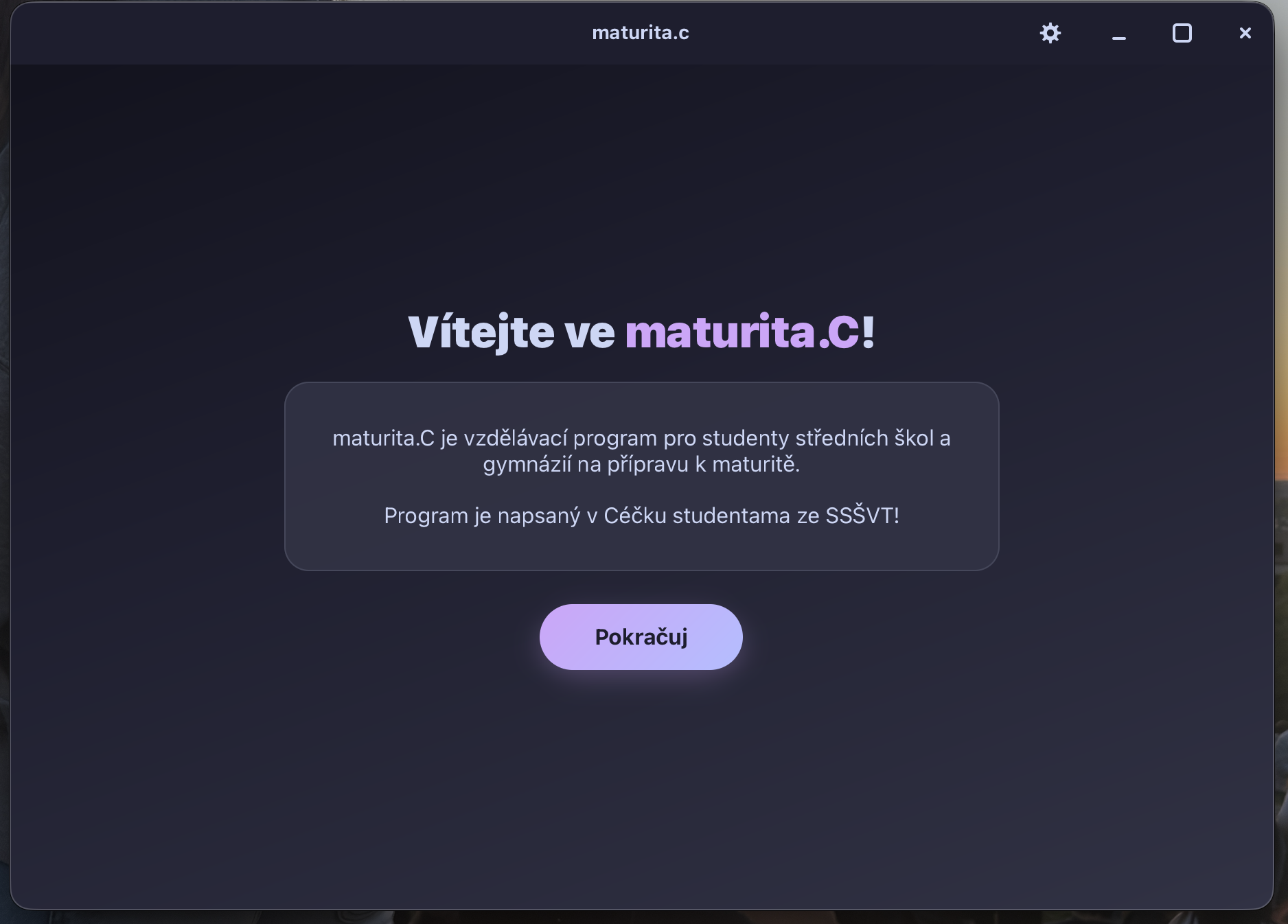
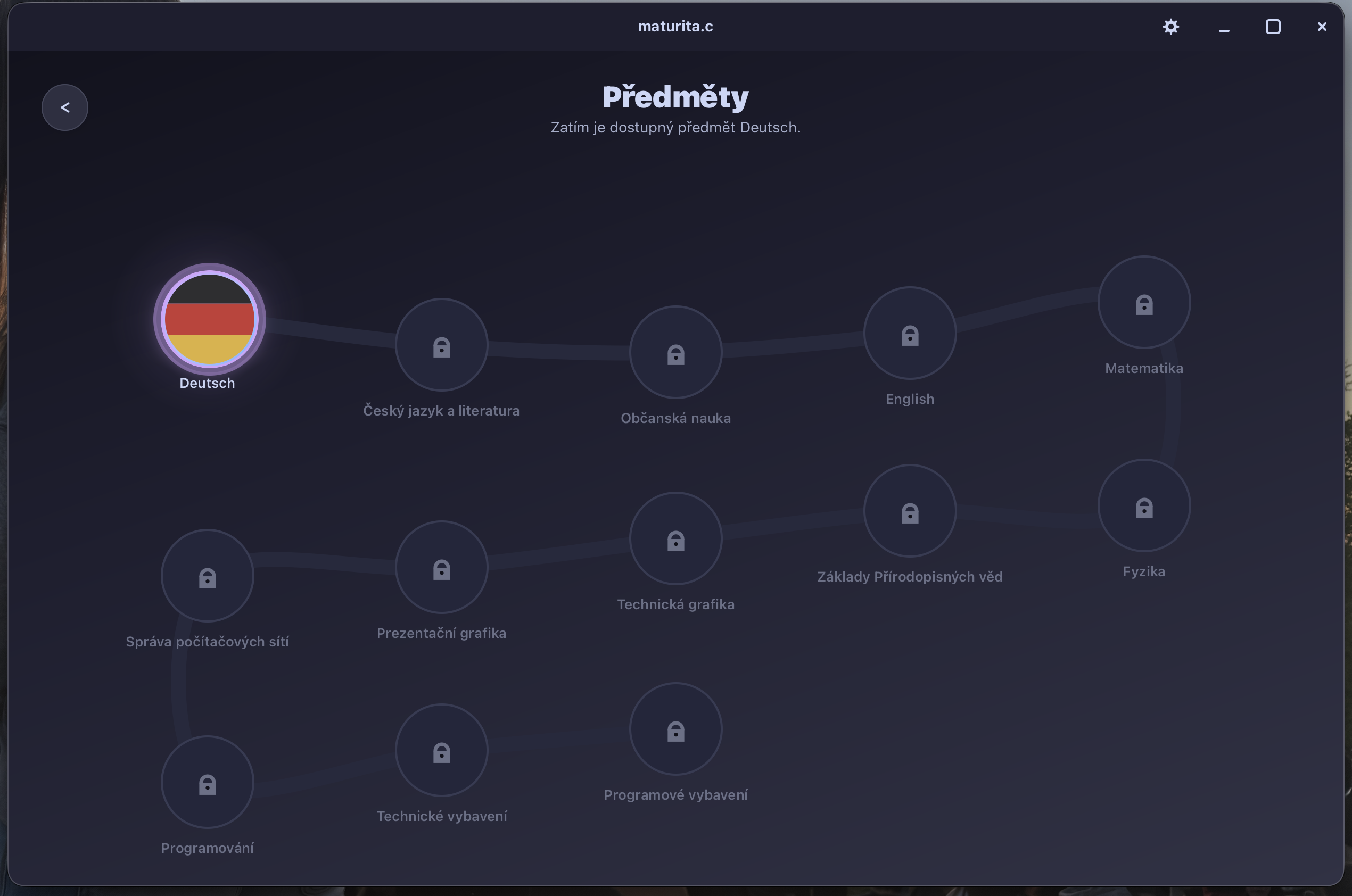
| Welcome screen | Subjects ("Předměty") | German learning roadmap |
|---|---|---|
 |
 |
 |
Features
- Welcome screen – branded greeting with a description of the program and a continue button to get started
- Subjects ("Předměty") – adaptive serpentine subject map with 13 subjects
- Deutsch is open (round bubble with the German flag) and opens the German learning path
- Správa počítačových sítí / Computer Network Administration is open too (marked "IP") and leads to a 30-unit computer-networks path whose first unit, Výpočet IP adres / IP Address Calculation, is playable; the rest are locked placeholders
- the remaining subjects are dimmed/locked placeholders until their content is added
- layout folds into multiple rows when the window is narrow
- Learning roadmap – adaptive serpentine learning path with 10 units
- each unit numbered and labeled with its topic (e.g. "Neue Freunde")
- units 1–3 are open; completed units shown in green with a checkmark
- remaining units dimmed with a lock icon
- finish node at the end of the path
- layout folds into multiple rows when the window is narrow
- Back navigation – themed circular back button (top-left) returns to the previous screen
- Unit 1 exercises – "Neue Freunde" opens an interactive bubble map with 13 exercises (dialogs, sentence building, multiple choice, free answers, numbers, verb conjugation, greeting sorting and more), each with German prompts and an instant-check button
- Unit 2 exercises – "Aus aller Welt" is playable from the start (no need
to finish unit 1 first) and offers a bubble map with 19 exercises: verb
conjugation, prepositions
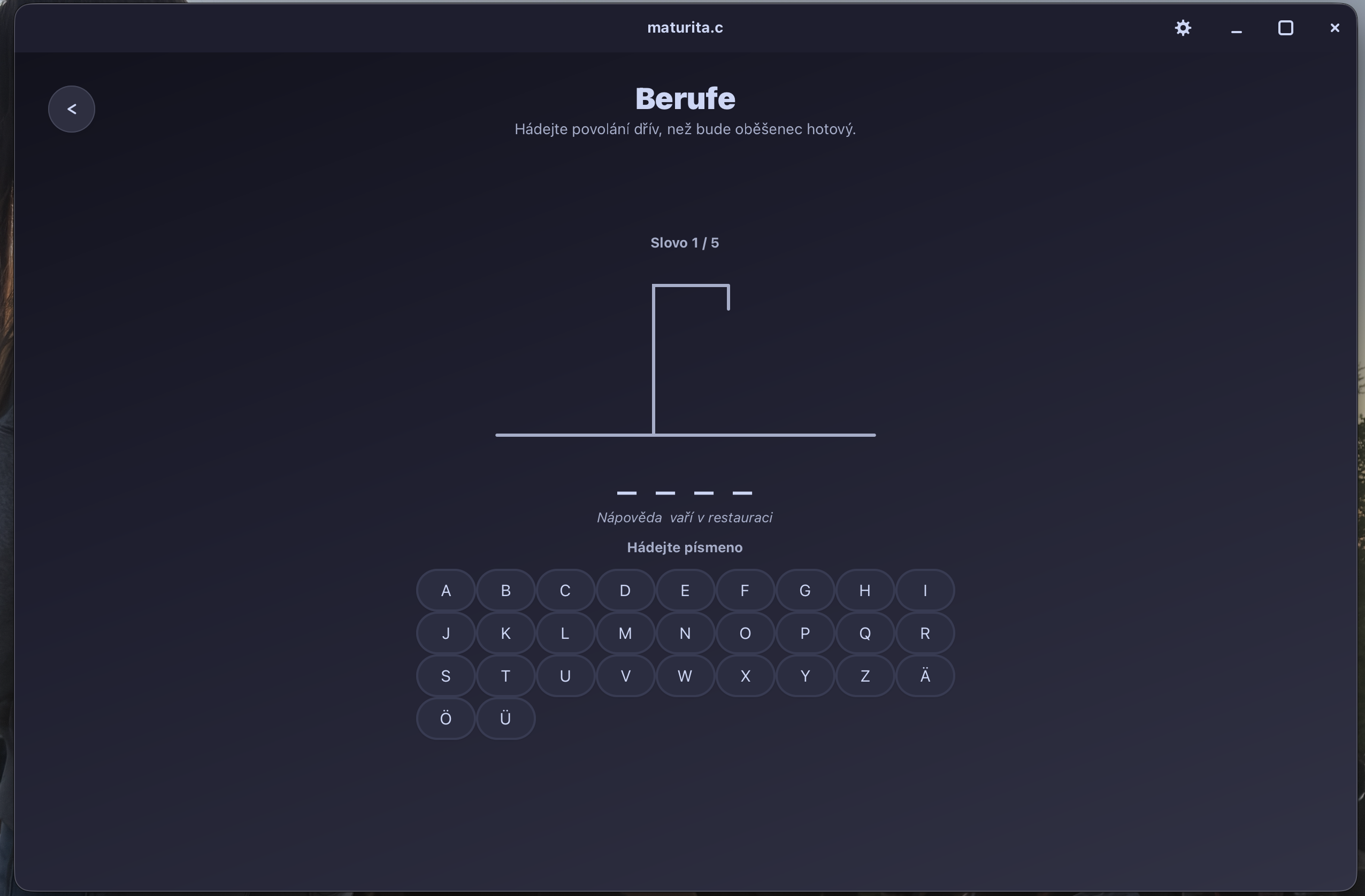
aus/in, question words, nationalities and countries, spelling/look-and-find tasks, a matching exercise, a number/word game, free-answer "Steckbrief" tasks and a Hangman game with 5 professions - Unit 3 exercises – "Bei uns zu Hause" covers family vocabulary, possessives, accusative and related grammar across 15 exercises (drop-down sentence fill-ins, word building, "Was siehst du?", sentence ordering and missing-letter sentences)
- Hints & model answers – in exercises where you write or complete a German sentence the Czech meaning is shown right away as a hint, and clicking the check button also reveals the correct German sentence so you can compare
- Computer networks ("Výpočet IP adres") – the first networks unit contains a 4-slide walkthrough of IP subnetting (masks, host ranges, VLSM) followed by a practice sheet with four subnetting tasks; each task has a "show solution" button with a worked answer key
- Progress tracking – completed exercises are marked green; progress is
saved per unit to
progress/unit1.conf,progress/unit2.confandprogress/unit3.confand restored on startup - Statistics – chart icon in the header opens a per-subject progress overview: summary totals (exercises done, percent, finished units) at the top, then every subject with its own progress bar (subjects without content yet are shown as locked), and a per-unit breakdown with progress bars for Deutsch; numbers update as soon as you finish an exercise
- Settings – gear icon in the top-right header opens a panel where you can
choose:
- mode: dark or light, as a segmented control
- theme: 10 palettes picked from a grid of color swatches
- language: Czech or English, applied instantly without a restart
- all three preferences are stored in
progress/settings.conf
- Keyboard quit shortcuts –
Super/Cmd+QorAlt+F4closes the app - Single-file C codebase, cross-platform (Linux, macOS and Windows)
Installation
Prerequisites
1. GTK 4 development libraries
macOS:
brew install gtk4
Linux (Debian / Ubuntu):
sudo apt install libgtk-4-dev
Linux (Fedora):
sudo dnf install gtk4-devel
Linux (Arch):
sudo pacman -S gtk4
Windows – GTK 4 has no official installer for Windows. There are two supported ways to get it:
- Native (MSVC / Visual Studio) – recommended. Download the prebuilt gvsbuild GTK4 package and unzip it. See Native Windows below.
- MSYS2 / MinGW. Install MSYS2 and use its
pacmanpackage manager.pacmanis not a Windows command and only works inside an MSYS2 terminal. See Windows with MSYS2 below.
2. Build tools (compiler, Make, pkg-config)
macOS – install all of these explicitly, they are not preinstalled:
# installs the GNU C compiler, Make, and pkg-config
brew install gcc make pkg-config
# if you prefer Apple's Clang toolchain instead, you can run:
# xcode-select --install
Linux – no need to install gcc, it is already preinstalled on most
distributions (it ships with build-essential/base-devel):
# Debian / Ubuntu: make sure you have the base toolchain and pkg-config
sudo apt install build-essential pkg-config
# Fedora
sudo dnf groupinstall "Development Tools"
sudo dnf install pkgconf-pkg-config
# Arch
sudo pacman -S base-devel pkgconf
Windows – with the native MSVC path you only need Visual Studio with the
Desktop development with C++ workload (this includes the compiler and
pkg-config comes from the GTK package). With the MSYS2 path, the packages
installed above already include GCC, Make and pkgconf; there is nothing
extra to install.
Building the Application
- Clone or download this repository
- Navigate to the project directory
- Build using the provided Makefile:
make
Or manually:
# Linux / macOS
gcc -o maturita maturita.c `pkg-config --cflags --libs gtk4` -lm

# Windows (MSYS2 UCRT64 / MINGW64)
gcc -o maturita.exe maturita.c `pkg-config --cflags --libs gtk4` -lm -mwindows
On Windows with Visual Studio, use the native build script or CMake instead – see Native Windows.
Building with CMake (optional, all platforms)
A CMakeLists.txt is provided for CMake/IDE users. On Linux and macOS:
cmake -S . -B build
cmake --build build
On Windows, first add GTK to the environment (adjust C:\gtk if needed),
then configure from an x64 Native Tools Command Prompt:
set "PATH=C:\gtk\bin;%PATH%"
set "PKG_CONFIG_PATH=C:\gtk\lib\pkgconfig"
cmake -S . -B build -G "Visual Studio 17 2022" -A x64
cmake --build build --config Release
CMake finds GTK 4 through pkg-config on every platform.
Running the Application
make run
or
# Linux / macOS
./maturita

# Windows (from the same MSYS2 MinGW shell used to build)
./maturita.exe
Native Windows (Visual Studio / MSVC)
This is the recommended Windows path: it builds a real native .exe with
MSVC and needs no MSYS2 or MinGW shell. GTK 4 for MSVC comes from
gvsbuild.
-
Install Visual Studio (2019 or 2022) with the Desktop development with C++ workload. The free Community edition is enough.
-
Download the gvsbuild GTK4 package from the latest release – the asset is named
GTK4_Gvsbuild_<version>_x64.zip– and unzip it toC:\gtkso thatC:\gtk\bin,C:\gtk\lib,C:\gtk\includeandC:\gtk\shareexist. (If you unzip it elsewhere, set theGTK_ROOTenvironment variable to that folder before building.) -
Build. From this repository, run
build-windows.batfrom a normal Command Prompt (or double-click it). It locates Visual Studio, sets up the MSVC environment and the GTK paths, and producesmaturita.exe:build-windows.batInternally it gathers the GTK flags with
pkg-config --cflags gtk4 --msvc-syntax/pkg-config --libs gtk4 --msvc-syntaxand compiles with:cl /O2 /MD maturita.c /Fe:maturita.exe ^ /link /SUBSYSTEM:WINDOWS /ENTRY:mainCRTStartup ^ %GTK_CFLAGS% %GTK_LIBS% -
Run.
maturita.exeneeds the GTK DLLs onPATH, so either run it from the same terminal or double-clickrun-windows.bat, which addsC:\gtk\bintoPATHfirst.
To build from Visual Studio itself, open the folder with CMake support (the
included CMakeLists.txt handles GTK), or create an empty C project and
paste the output of pkg-config --cflags gtk4 --msvc-syntax into
C/C++ → Command Line → Additional Options and the output of
pkg-config --libs gtk4 --msvc-syntax into
Linker → Command Line → Additional Options.
Windows with MSYS2
If you prefer GCC over MSVC, you can still build a native .exe with
MSYS2. The resulting binary is a normal Windows executable.
-
Install MSYS2 from https://www.msys2.org/ and complete the installer (accept the default install location).
-
Open the “MSYS2 UCRT64” entry from the Start menu. This is a special terminal, not Command Prompt or PowerShell –
pacmanonly exists here. (If you runpacmanincmd.exe/PowerShell you will see “'pacman' is not recognized”, which is expected.) -
In that MSYS2 UCRT64 terminal, install the compiler and GTK 4:
pacman -S --needed mingw-w64-ucrt-x86_64-gtk4 \ mingw-w64-ucrt-x86_64-toolchain \ mingw-w64-ucrt-x86_64-pkgconf make -
cdinto this repository (MSYS2 uses/c/...forC:\...) and build:cd /c/path/to/maturita.c makeThe Makefile detects Windows automatically and produces
maturita.exe. -
Run it from the same terminal:
make run # or: ./maturita.exe
Bundling the MSYS2 build
maturita.exe needs the GTK/MinGW DLLs next to it (or on PATH) to
start, so double-clicking it from Explorer normally fails with a
missing-DLL error. The Makefile can collect the required DLLs into a
dist/ folder:
make bundle
Then launch dist/maturita.exe by double-clicking it or from Explorer.
Running the app from the MSYS2 UCRT64 terminal (step 5) always works and
needs no bundling.
Usage
When launched, the application shows the welcome screen. From there:
- Click "Pokračuj" / "Continue" to open the Předměty / Subjects map.
- Click the Deutsch bubble (German flag) to open the German learning roadmap, or the IP bubble ("Správa počítačových sítí") for the computer-networks path. Other subjects are still locked.
- Browse the units along the path; the roadmap reflows into rows and scrolls if the window is too narrow.
- Click the "Neue Freunde" node to open unit 1, "Aus aller Welt" for unit 2 or "Bei uns zu Hause" for unit 3, then pick any bubble to start an exercise. Units 2 and 3 are available even if the earlier units are not finished yet.
- On the networks path, open "Výpočet IP adres" (the first unit) to walk through four slides on IP subnetting; the final slide leads to the practice sheet with four subnetting tasks and per-task "show solution" answers.
- Use the back button in the top-left corner to return to the previous screen.
- Open Statistiky / Statistics (chart icon, top-right) to see progress grouped per subject (overall totals plus, for Deutsch, a per-unit breakdown).
- Open Nastavení / Settings (gear icon, top-right) to switch dark/light mode, pick a color theme, or change the interface language.
Units 1–3 are currently implemented. Locked units do nothing – they are
placeholders until lessons are added. Completed exercises stay green and are
saved per unit to progress/unit1.conf / progress/unit2.conf /
progress/unit3.conf (created next to the app on first finish).
Keyboard shortcuts
| Shortcut | Action |
|---|---|
Super/Cmd + Q |
Quit application |
Alt + F4 |
Quit application |
Project structure
maturita.c              entire application (UI, navigation, themes, exercises)
Makefile                build & run targets (Linux, macOS, MSYS2)
CMakeLists.txt          optional CMake build (all platforms, incl. MSVC)
build-windows.bat       native MSVC build script (no MSYS2 needed)
run-windows.bat         launches maturita.exe with the GTK4 DLLs on PATH
README.md               this file
LICENSE                 GPL-3.0 license
progress/               created at runtime
  unit1.conf            unit 1 exercise completion state
  unit2.conf            unit 2 exercise completion state
  unit3.conf            unit 3 exercise completion state
  settings.conf         theme, dark/light mode and language preference
Theming
The app ships with ten palettes – Catppuccin, Nord, Dracula, Rose Pine, Ocean,
Gruvbox, Solarized, Everforest, Monokai and One Dark – each available in dark
and light mode. Colors are defined as theme palettes in maturita.c and
applied through a generated CSS stylesheet (plus matching Cairo colors for the
roadmap rails and icons).
Change the look from the in-app settings panel, or edit the palette tables /
build_theme_css() in maturita.c and rebuild.
Languages
The interface can be switched between Czech and English from the settings
panel; the choice takes effect immediately and is remembered between runs.
Translations live in two tables in maturita.c: tr_ui holds interface
strings under short keys, while tr_content translates the Czech meanings
shown next to the German exercise items and uses the Czech text itself as the
key. Widgets are registered with i18n_bind() so apply_language() can
retranslate them in place.
German prompts, unit names and exercise titles are learning material and stay German in both languages.
To-Do Plans
Future enhancements planned for maturita.c:
- Wire unit nodes to actual German vocabulary/grammar exercises
- Unit 1 ("Neue Freunde") – 13 interactive exercises with progress saving
- Unit 2 ("Aus aller Welt") – 19 interactive exercises (incl. Hangman)
- Unit 3 ("Bei uns zu Hause") – 15 interactive exercises
- Lesson progression and unlock system for the remaining units
- Add audio pronunciation features
- Add user settings panel (theme, dark/light mode, language)
- Implement spaced repetition system for vocabulary
- Add listening and reading comprehension exercises
- Add writing practice with feedback
- Expand progress tracking with statistics
- Move CSS styling to an external file
- Split the UI code into multiple files
- Add internationalization support (Czech and English)
- Add more interface languages
- Add unit testing framework
License
This project is licensed under the GPL3.0 License - see the LICENSE file for details.
Acknowledgments
- Created as a learning exercise in C and GTK programming
- Inspired by language learning applications
- Built with GTK 4 for modern GUI development